



Target Audience Architecture: Who Requires This Integration Guide
This deployment brief is constructed specifically for the enterprise C Suite, including Chief Information Officers, Chief Technology Officers, Chief Risk Officers, and Vice Presidents of Revenue Operations. It serves as a definitive implementation blueprint for technical platform architects, Salesforce enterprise administrators, and business systems engineers who are tasked with eliminating manual data entry friction within insurance distribution pipelines.
Strategic Enterprise Benefits: The Valuation of Connected Infrastructure
Operating disconnected sales systems creates severe revenue leakage, manual processing delays, and compliance exposure. Integrating the FireLight sales platform with Salesforce transforms your core CRM into a verified single source of truth, yielding immediate corporate advantages:
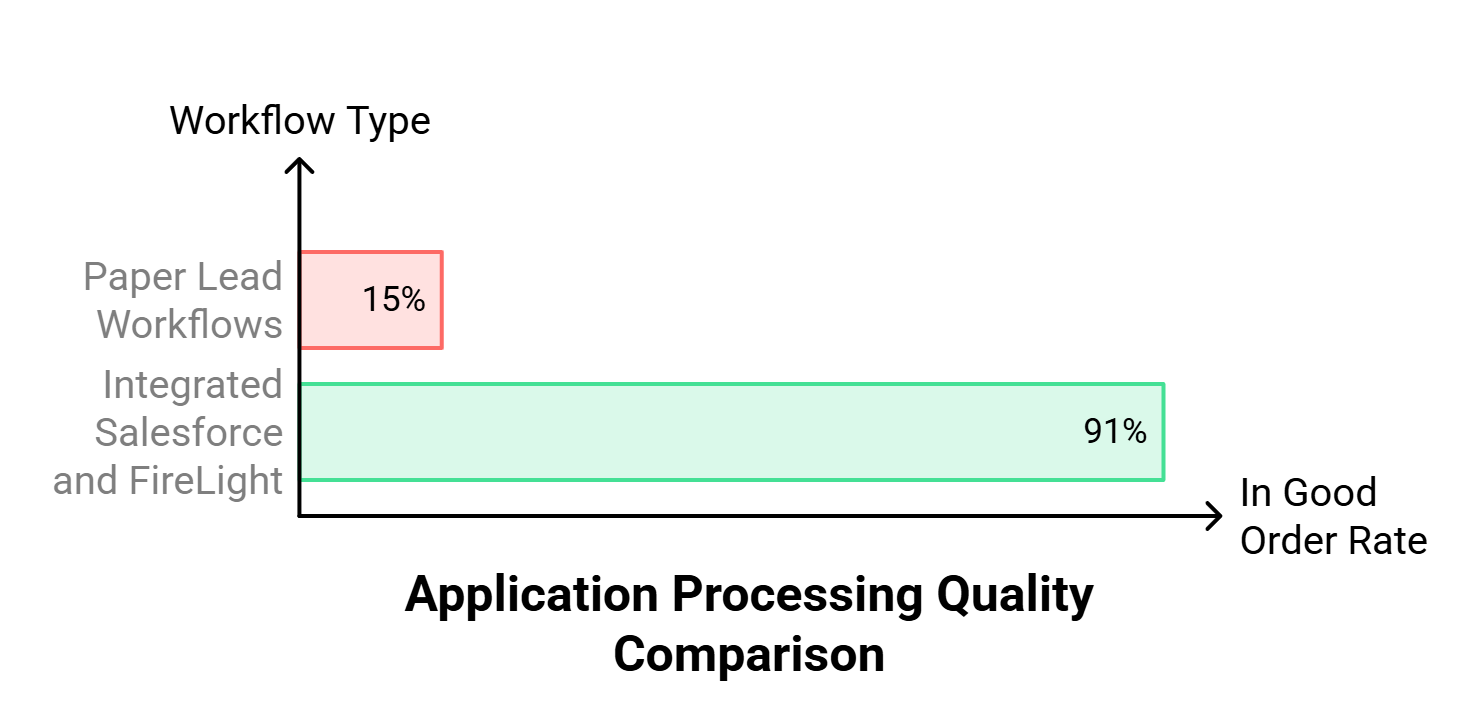
- Maximized Application Accuracy: Automating the transfer of client records from Salesforce into carrier forms drastically reduces manual processing errors. As documented by Ash Brokerage in their operational reviews, implementing structured eApplication pipelines drives an In Good Order rate of 91 percent, which nearly eliminates the need to return to clients for extra information.
- Accelerated Revenue Capture: Case issuance cycles drop significantly when administrative bottlenecks are removed. McKinsey research confirms that financial firms utilizing integrated digital tools for core sales execution report up to a 40 percent reduction in operational cost ratios compared to analogue alternatives. According to Hexure official documentation, the platform is engineered specifically because Salesforce integration provides a quick and accurate data entry experience by enabling FireLight users to pull their client data from Salesforce CRM into FireLight.
- Hardened Corporate Data Governance: Centralizing data access through secure OAuth protocols ensures compliance with strict financial industry regulations, removing the risk of scattered customer credentials or unencrypted password storage.
Operational Implementation Blueprint: How It Must Be Used
This guide must be utilized as an official systems standard operating procedure during corporate integration planning and execution phases. The C Suite must use the security configuration sections to audit current corporate risk postures, while platform administrators must execute the step by step configurations to bridge the authentication gap between the two environments. It provides the exact field mapping logic and user interface benchmarks required to turn raw CRM records into dynamic, self populating digital applications.
1. Salesforce Connected App and OAuth Configuration
How to establish a secure OAuth handshake between Salesforce and FireLight
To generate the OAuth Consumer credentials required by the FireLight external engine, you must configure a dedicated Connected App within the Salesforce App Manager.
Step One: Initiate the Connected Application
In the Salesforce environment, navigate to Setup, proceed to App Manager, and select New Connected App. Enter the following parameter values exactly as defined:
- Connected App Name: FireLight Integration
- API Name: FireLight_Integration
- Contact Email: Your designated system administrator account email address

This visual reference from Salesforce – Firelight Integration.docx confirms the layout of the External Client App Settings panel within Salesforce Setup, explicitly highlighting the target location of the New Connected App activation button directly below the External Client Apps control toggles.
Step Two: Enable OAuth Infrastructure
Activate the Enable OAuth Settings checkbox to expose the security configuration panel and apply these parameters:
- Callback URL: Input the exact endpoint provided by your FireLight instance, such as [https://www.firelightapp.com/EGApp/oauth/callback](https://www.firelightapp.com/EGApp/oauth/callback).
- Selected OAuth Scopes: Allocate Full Access (full) to ensure the integration can manage user data via secure APIs.


The original document provides two visual interface captures here. The first displays the Basic Information fields populated with FireLight Integration and the system administrator account email. The second displays the Manage Connected Apps portal screen where the Callback URL is explicitly defined and Full Access (full) is moved directly into the Selected OAuth Scopes repository.
Step Three: Commit the Application
Click Save, then click Continue. Note that Salesforce core settings can take up to 10 minutes to propagate across the cluster environment.

This visual reference from the source text shows the Salesforce configuration confirmation modal warning system administrators that changes can take up to 10 minutes to take effect across the parent organization platform.
Step Four: Extract and Map Consumer Credentials
Navigate to the API section labeled Enable OAuth Settings to capture your secure keys:
- Locate the Consumer Key, click Copy, and store it in a secure location.
- Locate the Consumer Secret, click Click to Reveal, copy the value, and isolate it safely.

This visual layout exhibits the completed Connected App profile screen under the API heading, detailing the exact location of the Manage Consumer Details control where the Consumer Key and Consumer Secret are exposed for migration into FireLight.
These values map directly into your FireLight third party configuration environment according to the following parameter structure:
- Salesforce Value: Consumer Key | FireLight Configuration: ClientID
- Salesforce Value: Consumer Secret | FireLight Configuration: ClientSecret
Step Five: Configure OAuth Security Policies
Click Manage, select Edit Policies, and update the specific parameters to authorize external data flows:
- Permitted Users: Select All users may self authorize.
- IP Relaxation: Select Relax IP Restrictions.
- Click Save to finalize the access security profile.

This final Salesforce visual block captures the OAuth Policies table interface showing Permitted Users set to self authorize and IP Relaxation set to relax restrictions across external integrations.
2. FireLight Multi Tier Authentication Architecture
Determining Organization Level versus Advisor Level Configuration Models
Your technical architecture team must determine whether to deploy organization level authentication or individual advisor level authentication based on your corporate Salesforce licensing model.
Option A: Organization Level Configuration
This model is recommended when your enterprise utilizes a centralized Salesforce license structure managed at the corporate level.
- Log into the FireLight administrative console and navigate to Admin, then select Organization Settings.

This image captures the Administrative control panel inside FireLight, specifically displaying the horizontal layout tabs (Organization, Security, External Integrations) and pointing to the Third Party Service Config line option within the main configuration screen.
- Locate the Third Party Service Config entry and select Click to Edit.
- Introduce a new configuration block for Service Type: Salesforce, entering these four unique configuration name variables exactly:
- Config Name: Username | Config Value: Your integration Salesforce Username
- Config Name: Password | Config Value: Your integration Salesforce Password
- Config Name: ClientID | Config Value: Your copied Salesforce Consumer Key
- Config Name: ClientSecret | Config Value: Your revealed Salesforce Consumer Secret
- Select Add Config for each variable, close the configuration dialog container, and click Save Organization to push the settings live.

This visual screen illustrates the modal input panel inside FireLight where the Salesforce Username, Password, ClientID, and ClientSecret parameters are committed securely into the system database.
Option B: Advisor Level Configuration
This structure must be deployed if individual advisors maintain distinct, isolated Salesforce licenses and require unique data access permissions.
- In the FireLight Admin console, navigate to Organization Configuration, select Groups, and open the App tab.
- Activate the checkbox labeled Enable CRM Preferences.
This visual clip displays the Group settings menu matrix inside FireLight where the system administrator toggles the Enable CRM Preferences rule live to clear advisor authorization options.
- Every individual advisor must then log into their FireLight portal, open the Preferences menu, and navigate to CRM Preferences.
This visual reference highlights the location of the personal Preferences link located on the upper right horizontal navigation bar of the individual producer workspace interface.
- The advisor must change the CRM selection dropdown to Salesforce and manually populate their personal Salesforce Username, Salesforce Password, Consumer Key, and Consumer Secret before clicking Save.
This user interface screenshot details the terminal form container where an individual advisor inputs their standalone Salesforce connection parameters to link accounts.
3. CRM Data Mapping and Form Automation Logic
Executing Real Time Data Ingestion into Digital Forms
FireLight pulls data from the Salesforce CRM directly into interactive forms by leveraging custom action components.
[Salesforce CRM Object Query] ──> [Data Group: Owner] ──> [Field Property: FirstName]
Step One: Establish the Salesforce CRM Trigger
Within the FireLight Form Designer tool, insert a Salesforce CRM Button onto the target form canvas.

This visual clip demonstrates the operational path to the Form Designer utility under the primary Organization Configuration sidebar menu inside the administrator console.
Open the field properties panel for the button and establish these base rules:
- Action Type: CRM
- CRM Type: Salesforce or Preferences
- Data Group: Owner (or your chosen target object grouping)

This graphic showcases the Field Properties window setting the Action Type to CRM and the CRM Type specifically to Salesforce for the execution button.
Note: Selecting Owner as the Data Group explicitly dictates that owner related fields will be extracted from the matching Salesforce record upon a user query.
Step Two: Structural Field Schema Mapping
For every separate field element on the digital form that requires automated population, navigate to Field Properties and link the inputs to the Salesforce schema:
- Field Target Example: D_Owner_FirstName
- Data Group Assignment: Owner
- Data Group Property Mapping: FirstName

This interface screenshot reveals the interactive layout mapping fields such as First Name, Middle Name, and Last Name directly to the Salesforce data group parameters on the digital form page.
This screenshot displays the specific mapping configuration linking the individual form element (such as Owner FirstName) to the target Salesforce Data Group Property schema.
Repeat this definitive schema assignment across all form inputs to ensure comprehensive coverage of your Salesforce synced fields.
4. Troubleshooting Critical Legacy Authentication Failures
Mitigating the Core Flow Conflict Between FireLight and Salesforce
During active deployments based on the records in Salesforce – Firelight Integration.docx, enterprise teams often encounter an immediate connection break upon initial setup testing.
- The Core Problem: FireLight is architected to utilize Salesforce’s legacy Username Password OAuth Flow to execute remote authentication requests. However, modern Salesforce security baselines have migrated heavily toward the modern External Client Apps architecture and are systematically deprecating legacy credential tracking loops.
- The Immediate Remediation: To resolve the resulting authentication failure, your Salesforce system administrator must explicitly modify the Connected App policies to permit the legacy Username Password Flow. Once this protocol restriction is lifted within Salesforce, the integration pipe validates successfully.
5. Future Proof Architectural Recommendations
Transitioning the Integration to Modern Enterprise Standards
To ensure long term stability, eliminate credential risk, and align with modern corporate compliance guidelines, enterprise technology leaders should advocate for an upgrade to the authentication engine.
Your platform architecture teams should plan to migrate the connection framework away from the legacy Username Password Flow and adopt the modern OAuth 2.0 Client Credentials Flow. This structural shift delivers key operational advantages:
- Eradication of Credential Storage: The integration completely removes the necessity to store or rotate static user passwords within the FireLight configuration database.
- Hardened Security Boundaries: The data pipeline relies entirely on a secure, server to server exchange utilizing only the Consumer Key (Client ID) and Consumer Secret (Client Secret).
- Streamlined Identity Access Management: Breaking the dependency on individual user accounts ensures the API bridge remains fully operational even during corporate personnel turnover or identity access migrations.