
Integrating Google Drive with HubSpot can streamline your workflows and save time by automating the process of associating files with HubSpot records. However, there are limitations to this integration, and careful setup is essential to ensure smooth functionality. Below, we’ll guide you through the steps, highlight limitations, and offer manual alternatives when needed.
1. Structuring Files for Accurate Association
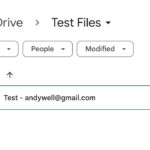
A well-structured naming convention is critical for ensuring Google Drive files can be matched with HubSpot records correctly. Each file name must include the contact’s email address. This setup allows the automation to identify and link the files to the respective HubSpot records seamlessly.
Example:
- Contact Email: andywell@gmail.com
- File Name: andywell@gmail.com – Contract.pdf
By embedding the email address in the file name, the integration process becomes straightforward and efficient.

2. Automating the Process Using Zapier
Zapier can be used to automate the process of syncing files between Google Drive and HubSpot. The automation workflow performs the following tasks:
- Retrieve Files from Google Drive: Zapier scans Google Drive for files containing the contact’s email address in the file name.
- Generate Downloadable URLs: Zapier creates shareable links for the files, making them accessible for HubSpot records.
- Insert URLs into HubSpot Records: The generated URLs are automatically added to the respective contact, company, or deal records in HubSpot.
Example Workflow:
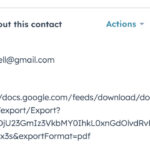
- Input: A file named andywell@gmail.com – Contract.pdf in Google Drive.
- Output: A downloadable link is inserted into the corresponding HubSpot contact record.
Image Example:
Limitation:
Currently, Zapier does not support directly attaching files to HubSpot objects. While you can add file URLs, the files themselves remain in Google Drive.
Image Example:
3. Manual Selection in HubSpot for Greater Flexibility
For teams that prefer to store files directly within HubSpot, a manual approach may be necessary after automation retrieves the files. Here’s how you can do this:
- Ensure File Compatibility: Before uploading files, confirm they are in a supported format, such as PDF, DOCX, or XLSX. Google Drive formats (e.g., Google Docs, Sheets, or Slides) must first be exported to compatible file types.
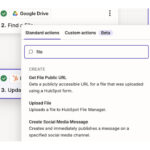
- Upload Files via Automation: Set the Zapier workflow to upload files to the HubSpot file manager.
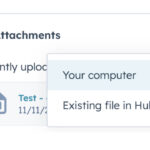
- Manually Attach Files to Records:
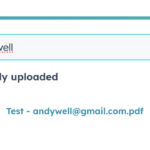
Use the email address in the file name to search for the file in HubSpot’s file manager.
Attach the file to the appropriate contact, deal, or company record in HubSpot.
Image Example:
Ready to simplify your file management? Let Mountainise help you automate your Google Drive and HubSpot processes. Book your free working session now!
Leave a Reply
You must be logged in to post a comment.